Chat integration
Connect TIcoons to LibreChat in about two minutes.
Overview
The chat UI is powered by our hosted LibreChat. Once your API key is wired into the TiCoons MCP server inside LibreChat, you can ask questions and take actions on your TIcoons data from chat.
Setup steps
Generate an API key
Sign in to the chat console
Open https://chat.ticoons.ti.trilogy.com/ and sign up using Google authentication.
Open MCP and select TiCoons
In the LibreChat sidebar, click MCP, then select the TiCoons MCP server.
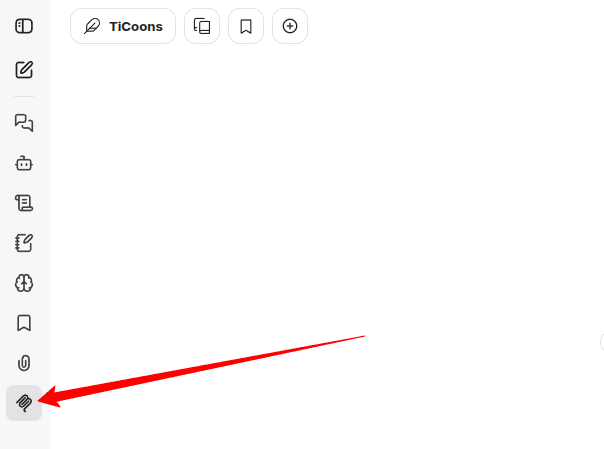
MCP in the sidebar, then the TiCoons server. Connect with your API key
Click Edit or Connect on the TiCoons MCP server and paste the API key you generated in step 1.
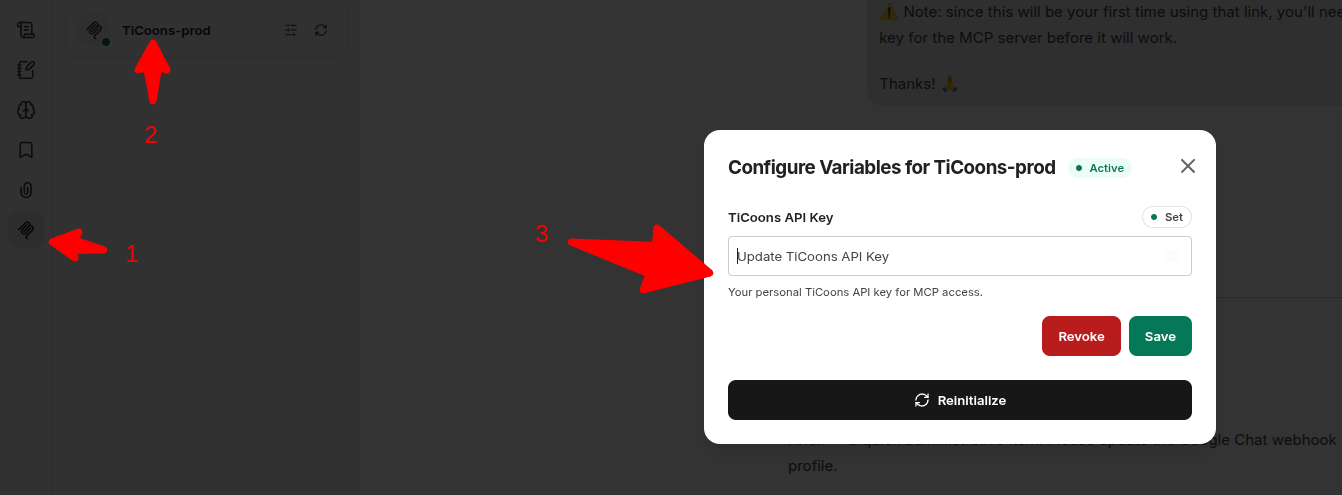
Supply your API key in the connect dialog. Verify the connection
Open the verification prompt to confirm TIcoons is reachable from chat. If an action item asks you to finish chat setup, mark it resolved once this works.
Need agent-style setup instead?
If you are wiring Cursor, Claude Code, or another MCP client directly — not LibreChat — see the For agents page for connection snippets.